
How to Set Up Tivimate Pro on Firestick
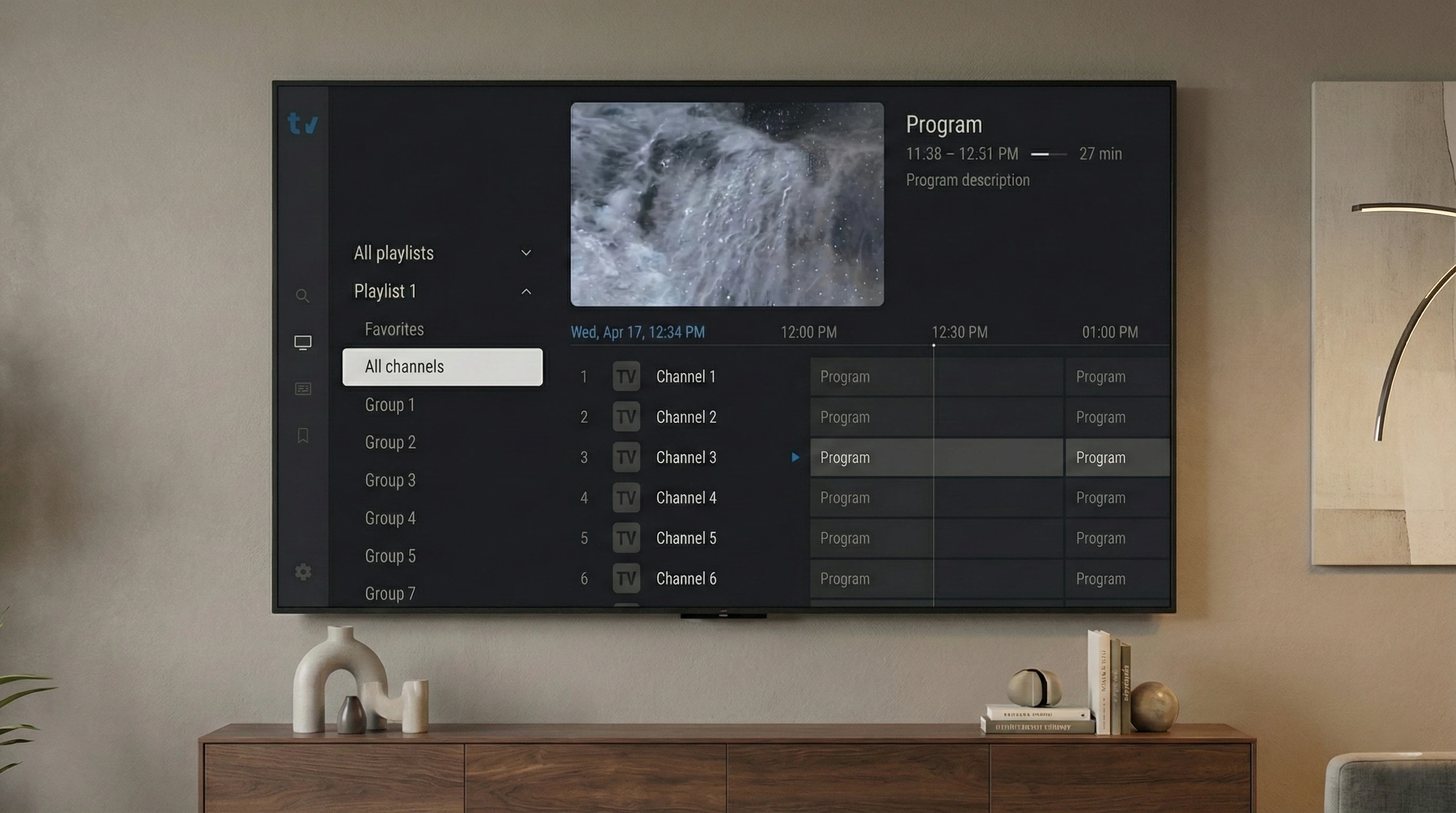
Setting up Tivimate Pro on Firestick is straightforward once you know the steps. This guide walks you through enabling unknown sources, downloading the APK, and adding your IPTV credentials so you can start streaming live TV and VOD.
We’ll use the official Tivimate APK and the Downloader app with code 272483. If you don’t have an IPTV subscription yet, you can start a free trial or choose a plan.
What You Need Before Starting
- Amazon Fire TV Stick or Fire TV Cube (any recent model)
- Stable internet connection (Wi‑Fi or Ethernet adapter)
- Amazon account for the Appstore (to install Downloader)
- Active IPTV subscription with M3U or Xtream Codes
- Optional: VPN for privacy/buffering issues
Enable Apps from Unknown Sources
Firestick blocks non‑Appstore apps by default. You must allow installation from unknown sources to install the Tivimate APK.
- Go to Settings > My Fire TV > Developer Options.
- Turn on “Apps from Unknown Sources.”
- Turn on “ADB Debugging.” (only required on some models).
Tip: If you don't see Developer Options, go to Settings > My Fire TV > About > tap Fire TV Stick 7 times to activate it.
Install Downloader App
We’ll use the Downloader app to fetch the Tivimate APK. You can get it from the Amazon Appstore.
- Search for “Downloader” on the Fire TV home screen.
- Select the app by AFTVnews.com and install it.
- Open Downloader once installed.
Download Tivimate Pro APK
Use Downloader with the code 272483 to get the official Tivimate APK.
- Open Downloader.
- Enter the URL: https://files.tivimate.com/tivimate.apk
- Or use the Downloader code: 272483
- Download the APK.
Note: The APK is the same file used across Android TV devices. It’s safe to download from the official Tivimate domain.
Install Tivimate Pro
After the APK downloads, Firestick will prompt you to install it.
- Open the downloaded APK from Downloader.
- Select “Install.”
- If prompted, allow installation from this source.
- Wait for the installation to complete.
- Open Tivimate Pro.
Add Your IPTV Credentials
With Tivimate installed, you can now add your IPTV subscription details.
- Open Tivimate Pro.
- Go to Add Playlist.
- Choose your format: M3U URL or Xtream Codes.
- Enter your credentials: the M3U/EPG URL or server/username/password from your subscription.
- Save and load channels.
If you don’t have a subscription yet, choose a plan or start a free trial.
Optimize Settings for Stable Streaming
- Set player decoder to Hardware if available.
- Enable Preferred audio language and Subtitle settings.
- Adjust Buffer size if you experience stuttering.
- Use EPG URL if your provider supplies one for a TV guide.
Troubleshooting Common Issues
App won't install
Ensure “Apps from Unknown Sources” is ON. Re‑download the APK if the file is corrupted.
No channels after adding playlist
Double‑check your M3U/Xtream details. Ensure your subscription is active and the URL is correct.
Buffering/freezing
Try Ethernet, reduce video quality, or test another VPN server. Contact your provider if the issue persists.
Best Practices for Firestick Streaming
- Keep your Firestick storage at least 500 MB free.
- Restart the device weekly to clear cache.
- Use a 5 GHz Wi‑Fi network when possible.
- Don’t exceed your plan’s simultaneous streams.
- Keep Tivimate updated from the APK link above.
FAQ
Is this the official Tivimate Pro?
Yes. We link to the official Tivimate APK from files.tivimate.com.
Do I need a VPN?
Not required, but a VPN can help with privacy or ISP throttling.
Can I install Tivimate from the Amazon Appstore?
Currently, you must sideload the APK using Downloader. Follow the steps above.
Where do I get IPTV credentials?
After purchasing a plan, you’ll receive an email with your M3U/Xtream details. If you’re unsure, contact support.
Conclusion & Next Steps
You now have Tivimate Pro running on your Firestick with your IPTV subscription loaded. From here, organize your channels, set favorites, and enjoy live TV and VOD.
If you want more device guides or need help, visit our download page or FAQ.
Ready to Start Streaming?
Get your IPTV credentials and use them in Tivimate Pro on Firestick.