
Install and Setup Tivimate Pro on All Devices
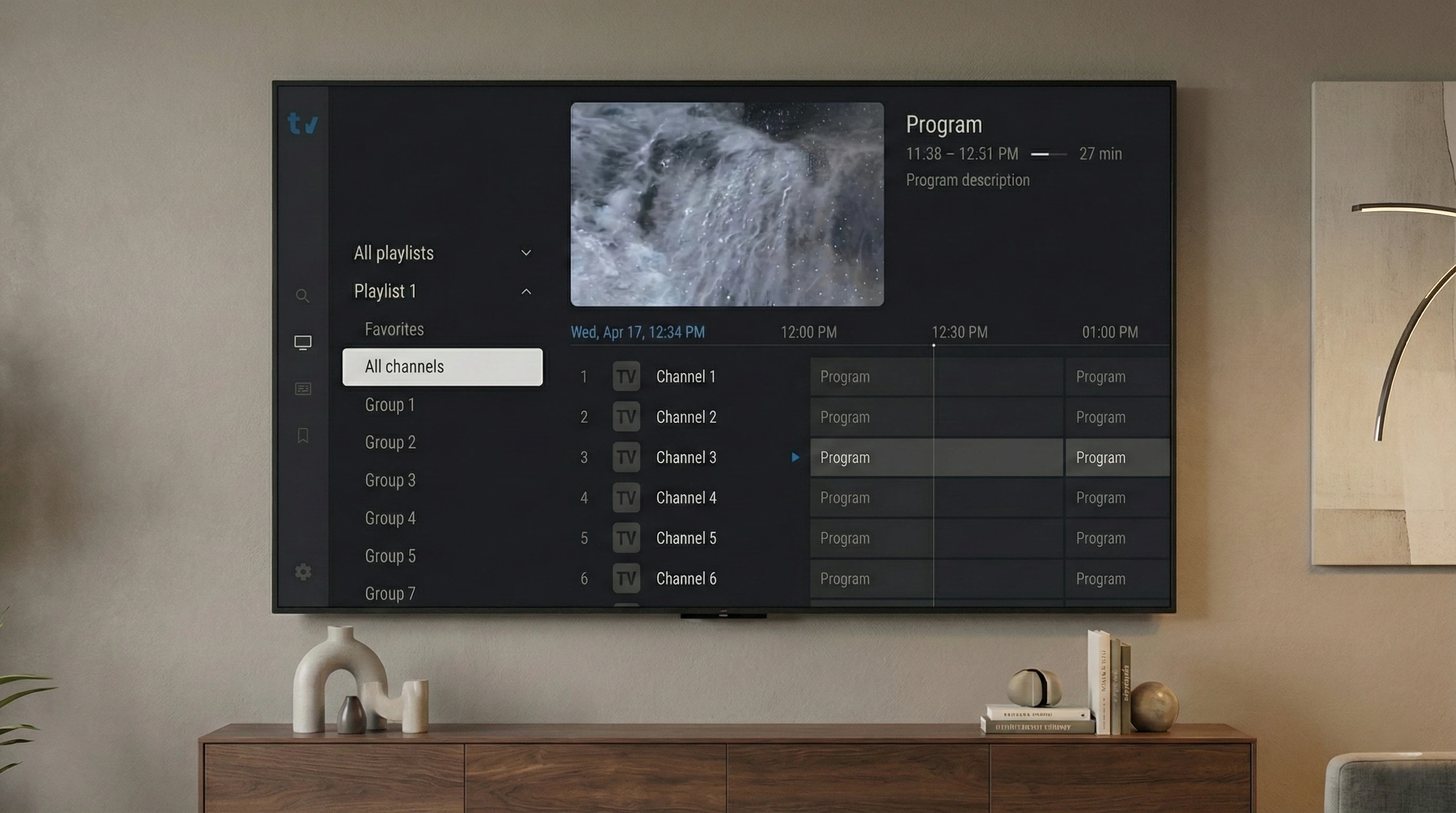
Welcome to the complete guide on how to install and setup Tivimate Pro. This guide covers the available devices: Android TV and Amazon Firestick, with detailed step-by-step instructions.
Tivimate Pro is the leading IPTV player that transforms your streaming experience across multiple platforms. This guide will walk you through every installation process, ensuring you can enjoy your favorite content on any device with ease.
Device Compatibility Overview
Tivimate Pro supports a wide range of devices, making it the most versatile IPTV player available:
Android TV
Google Play Store
Amazon Firestick
APK installation
Android TV Setup
Setting up Tivimate Pro on Android TV provides the ultimate big-screen IPTV experience:
Installation Steps
- Navigate to the Google Play Store on your Android TV
- Use the search function to find "Tivimate IPTV Player"
- Select the official app and click Install
- Wait for installation to complete
- Launch the app from your apps list
- Follow the on-screen setup wizard
- Add your IPTV playlist using your subscription details
⚠️ Important: Ensure your Android TV has sufficient storage space and is connected to a stable internet connection for optimal streaming performance.
Amazon Firestick Installation
Installing Tivimate Pro on Firestick requires sideloading the APK. Here's the complete process:
Step 1: Enable Apps from Unknown Sources
- Go to Settings on your Firestick
- Select My Fire TV
- Choose Developer Options
- Enable Apps from Unknown Sources
Step 2: Install Downloader App
- Search for "Downloader" in the Amazon App Store
- Install and open the Downloader app
- Allow permissions when prompted
Step 3: Download Tivimate APK
- In Downloader, enter the URL: https://files.tivimate.com/tivimate.apk
- Or use the Downloader code: 272483
- Wait for the download to complete
- Click Install when prompted
- Launch the app and complete setup with your IPTV credentials
Connecting Your IPTV Subscription
Once Tivimate Pro is installed, follow these universal steps to connect your IPTV subscription:
Adding Your Playlist
- Open Tivimate Pro on your device
- Tap Add Playlist
- Choose your playlist type:
- M3U URL - Direct playlist link
- Xtream Codes API - Username, password, and server URL
- Enter your credentials provided by your IPTV provider
- Tap Add to save your playlist
- Wait for channels to load (may take a few minutes)
- Start enjoying your IPTV content!
🎯 Best Practice: Use a high-quality IPTV subscription provider that offers stable streams, comprehensive EPG, and reliable customer support for the best Tivimate Pro experience.
Common Troubleshooting
App Won't Install
Ensure your device meets minimum requirements and has sufficient storage space. For Firestick, double-check that Apps from Unknown Sources is enabled.
Channels Not Loading
Verify your internet connection is stable. Check that your IPTV subscription is active and credentials are correct. Contact your IPTV provider if issues persist.
Buffering Issues
Check your internet speed (minimum 10 Mbps recommended). Close other apps using bandwidth. Consider upgrading your internet plan if needed.
EPG Not Working
Ensure your IPTV provider includes EPG data. Refresh the EPG in Tivimate settings. Some providers may require separate EPG sources.
Frequently Asked Questions
Is Tivimate Pro free?
Tivimate offers both free and premium versions. The premium version unlocks advanced features like recording, multiple playlists, and enhanced customization options.
Can I use one subscription on multiple devices?
This depends on your IPTV provider, not Tivimate Pro. Most providers allow multiple connections, but check your subscription terms for specific limits.
Which device is best for Tivimate Pro?
Android TV and Firestick offer the best TV experience, while smartphones provide portability. Choose based on your viewing preferences and lifestyle.
How often should I update Tivimate Pro?
Enable automatic updates when possible. Manual updates are recommended when new features are released or if you experience issues.
Can I use Tivimate Pro without an IPTV subscription?
No, Tivimate Pro is a player that requires an IPTV subscription to access content. You need to purchase IPTV service separately.
Conclusion
Installing and setting up Tivimate Pro on all devices is straightforward when you follow the right steps. Whether you prefer streaming on your smartphone, TV, or computer, Tivimate Pro delivers a consistent, high-quality IPTV experience across all platforms.
Remember that the key to great IPTV streaming is not just the player, but also a reliable IPTV subscription provider. Choose a provider that offers stable streams, comprehensive channel listings, and excellent customer support for the best experience.
Ready to Start Streaming?
Get your Tivimate Pro setup complete with a premium IPTV subscription. Start enjoying thousands of channels today!